|
Size: 771
Comment:
|
Size: 865
Comment: edited instruction to enable WKD
|
| Deletions are marked like this. | Additions are marked like this. |
| Line 6: | Line 6: |
| =====in version 5.18.3 #In the menu open "Settings" and click on "Configure KMail..." |
===in version 5.18.3 ====Result after enabling WKD: {{image:kmail_enable_wkd_result.png}} ====1.In the menu open "Settings" and click on "Configure KMail..." |
| Line 9: | Line 13: |
| #In the next window that will be opened select the account, for which you want to enable WKD, and click on "Modify..." on the right {{image:kmail_select_modify.png|Screenshot}} #Open the tab "Cryptography" and activate the checkbox "Automatically encrypt messages when possible" {{image:enable_wkd.png|Screenshot}} |
====2.In the next window that will be opened select the account, for which you want to enable WKD, and click on "Modify..." on the right {{image:kmail_select_modify.png|Screenshot}} ====3.Open the tab "Cryptography" and activate the checkbox "Automatically encrypt messages when possible" {{image:enable_wkd.png|Screenshot}} |
KMail
KMail is an email client for different GNU/Linux distributions, which was developed by KDE and is part of an "information management suite" named Kontact. It is offering OpenPGP-encryption and implements the WKD-standard.
How to enable WKD
in version 5.18.3
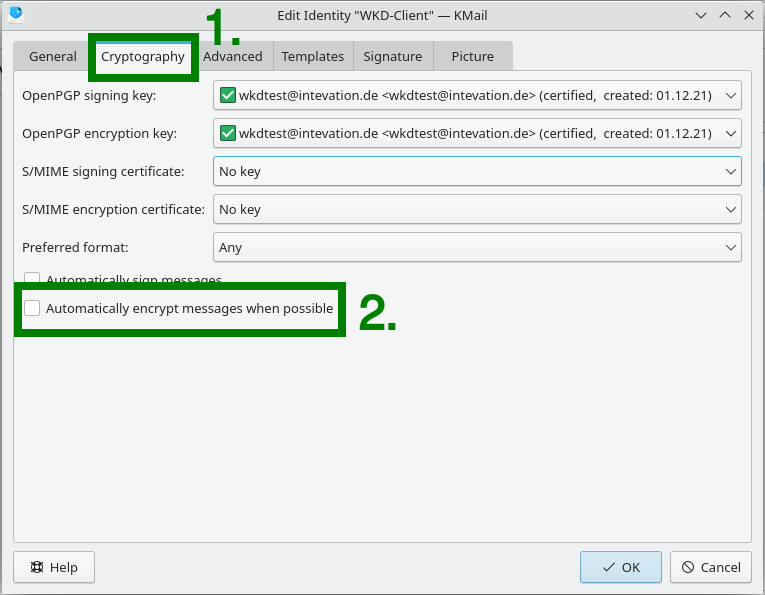
Result after enabling WKD:
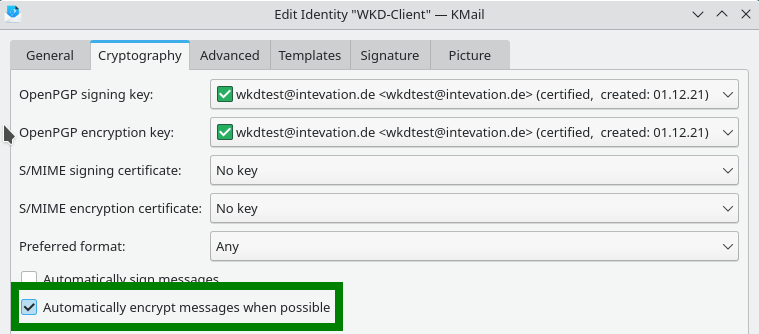
1.In the menu open "Settings" and click on "Configure KMail..."
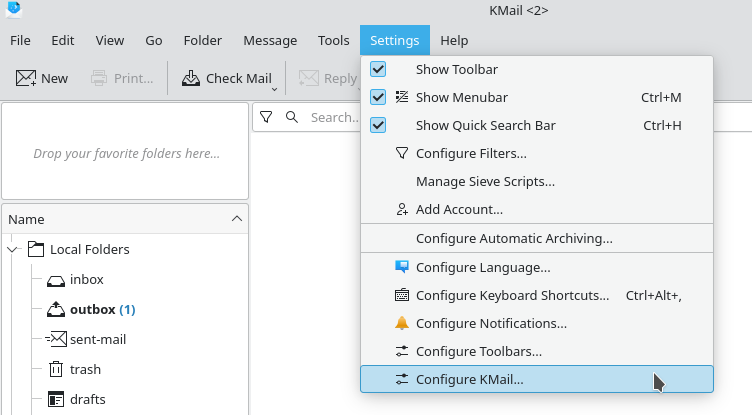
2.In the next window that will be opened select the account, for which you want to enable WKD, and click on "Modify..." on the right
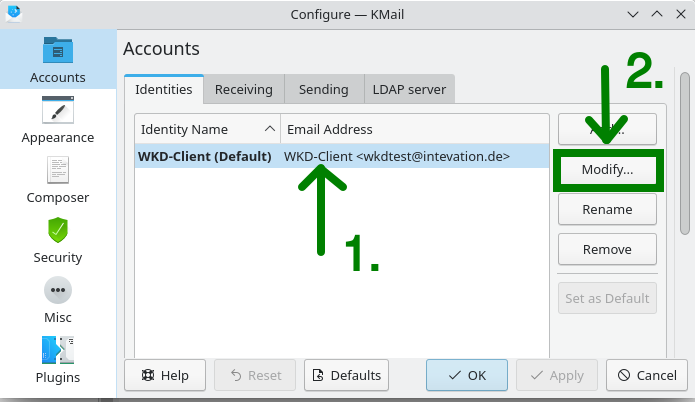
3.Open the tab "Cryptography" and activate the checkbox "Automatically encrypt messages when possible"