
Installation of Gpg4win
This tutorial was tested with Gpg4win 4.0.3. For newer versions should be the same just exchange 4.0.3 with the most current version.
Download Gpg4win
- Visit https://gpg4win.org/get-gpg4win.html
- We assume that you already paid voluntarily for Gpg4win and skip the part. Thanks for your support of Gpg4win and the work behind Gpg4win like these tutorials.
- Click on the button $0
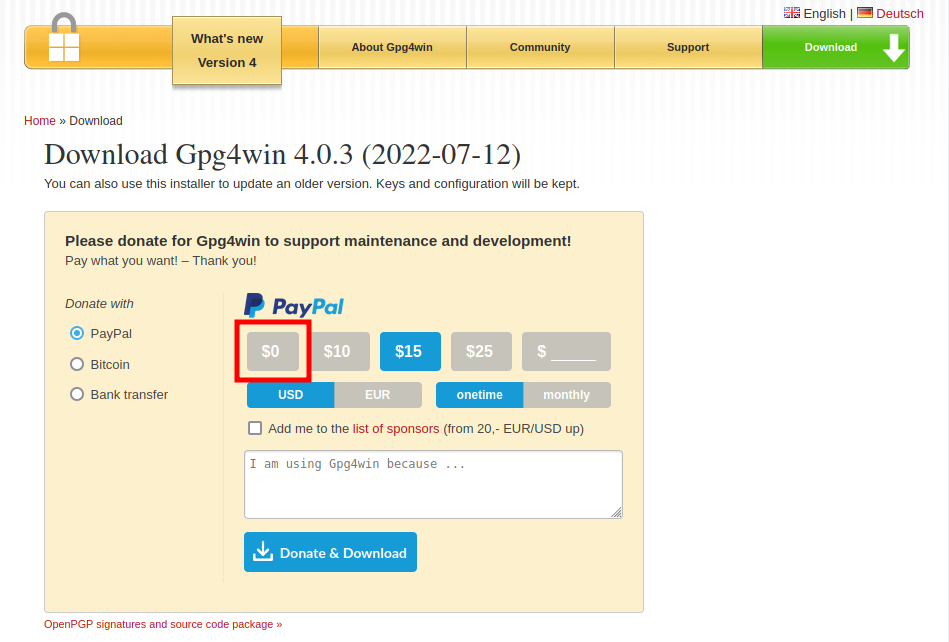
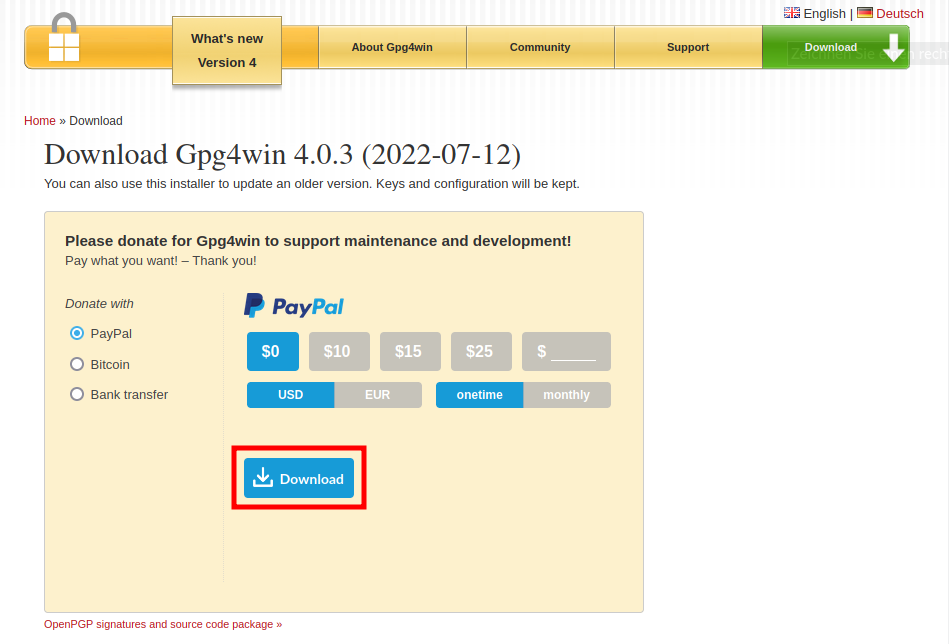
- Click on the button Download to start the download.
Install Gpg4win
- Open the file gpg4win-4.0.3 (or gpg4win-4.0.3.exe)
- TODO check the integrity
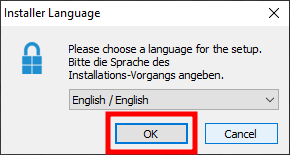
- After some time a small window appears where you select your preferred language and click on OK
- Click on Next >
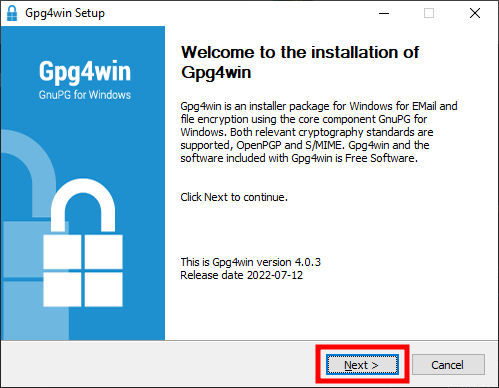
- In the next window you may select components that will be installed. For most users it is not necessary to change this selection so just click on Next >.
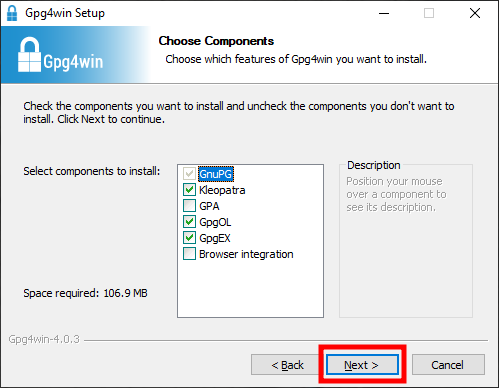
- Now you can select where Windows will install Gpg4win. Again, for most users it is okay to let this setting as it is. Click on Next >.
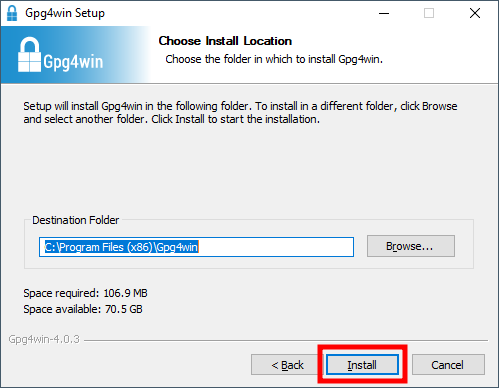
- In the next window wait for the progress bar until it shows that the installation is complete. Click on Next >.
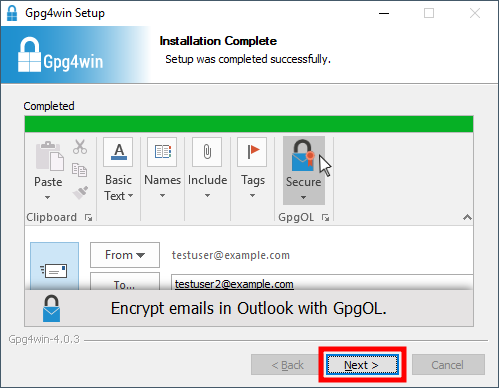
- Click on Finish to close the installation window.
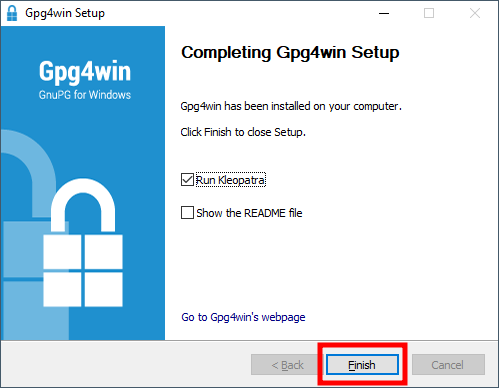
Now you are ready to use Gpg4win
If you followed the tutorial without any modification you should now be able to see a shortcut for Kleopatra on your Desktop. Kleopatra is the tool you can use to manage keys for encryption to encrypt and decrypt files and to do other stuff.