
Create your own key pair
The first part of this tutorial (key creation) is for Gpg4win 4.1.0. The rest is for 4.0.3. since it wasn't updated yet. For new versions this process may differ.
under construction
Contents
Introduction
If you want to start with encryption it is necessary to have your own pair of keys so that you have a private and a public key. Maybe you already have one but you need to import it. Then you can follow this section as it also works with your own key pair. The other way is to create your key pair and this way is shown in this tutorial.
Sometimes the keys are also called "certificates" which is a term coming from the encryption via S/MIME. For many users (and especially those who are unsure) encryption via OpenPGP is the right way. Since Gpg4win/Kleopatra can handle both the certificates and the keys are called certificates in the program.
Create the key pair
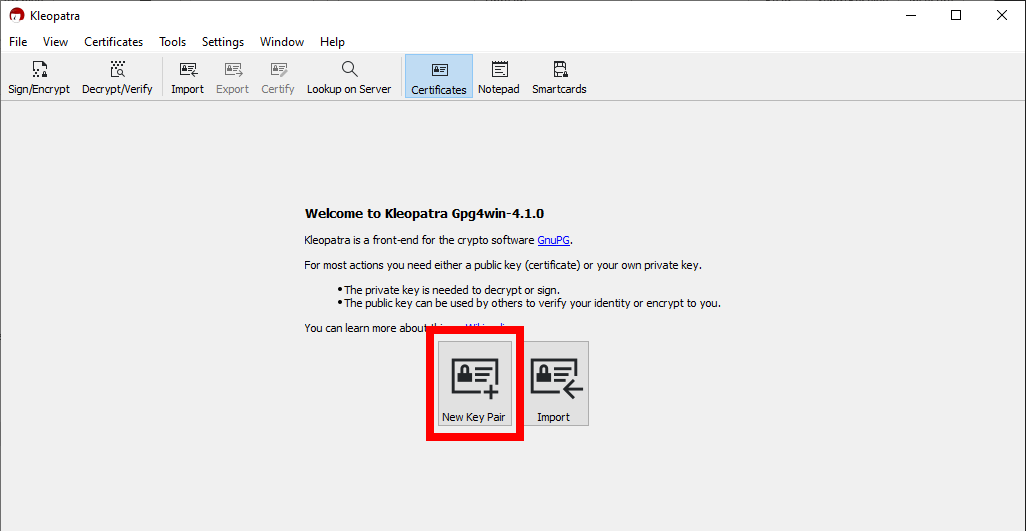
Click on "New Key Pair"
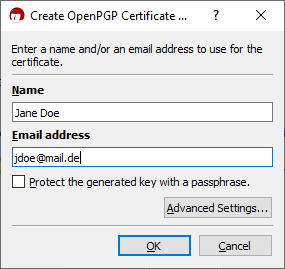
Enter your name and email address and click on "OK"
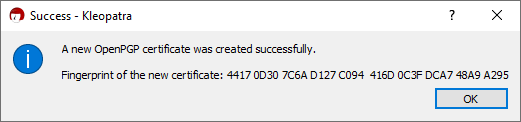
When the next window appears confirm with a click on "OK".
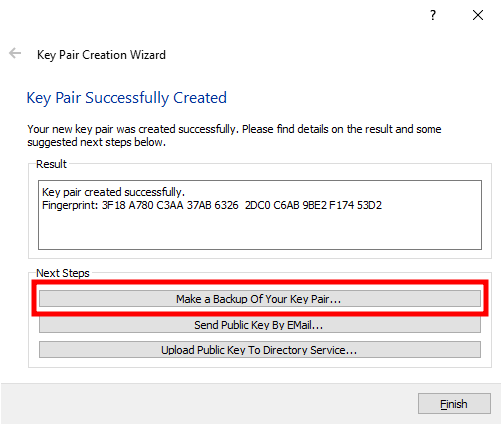
Backup your key pair
todo link general recommendation about backups and the section where to backup
It's great that you chose to backup your keys now because if you didn't maybe you would forget it and if you loose your keys you can never read messages that were encrypted by these keys again.
- Click on the option Make a Backup Of Your Key Pair...
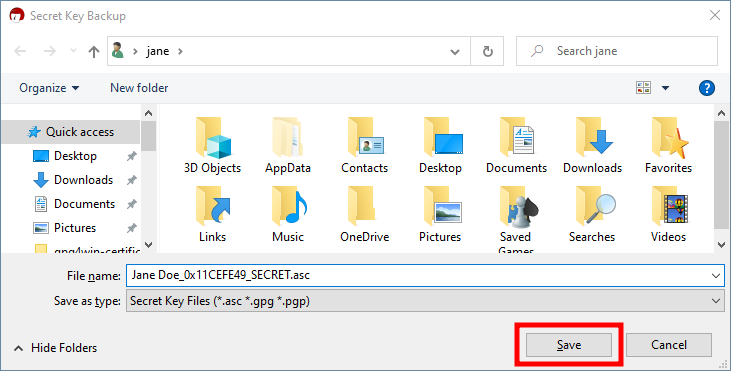
- The file explorer will be opened. Here you can choose a folder where your backup will be saved (The place you save the keys to should be on a different device than you normally use e.g. an external hard drive). Then click on Save.
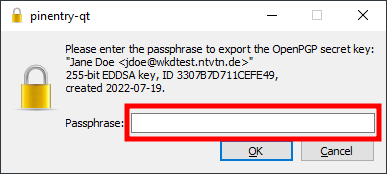
- Enter the password/passphrase that you chose when you created the key pair...
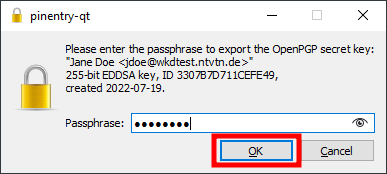
- ... and click on OK
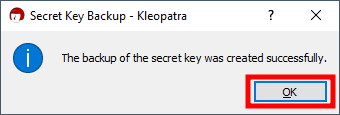
- The next window explains that the backup was successfully. Confirm with OK.
Congratulations! You created and backed up your own key pair.