
Installation of Gpg4win
This tutorial was tested with Gpg4win 4.0.3. For newer versions should be the same just exchange 4.0.3 with the most current version.
work in progress
Contents
1. Download Gpg4win
2. Check the integrity
3. Install Gpg4win
1. Download Gpg4win
- Visit https://gpg4win.org/get-gpg4win.html
- We assume that you already paid voluntarily for Gpg4win and skip the part. Thanks for your support of Gpg4win and the work behind Gpg4win like these tutorials.
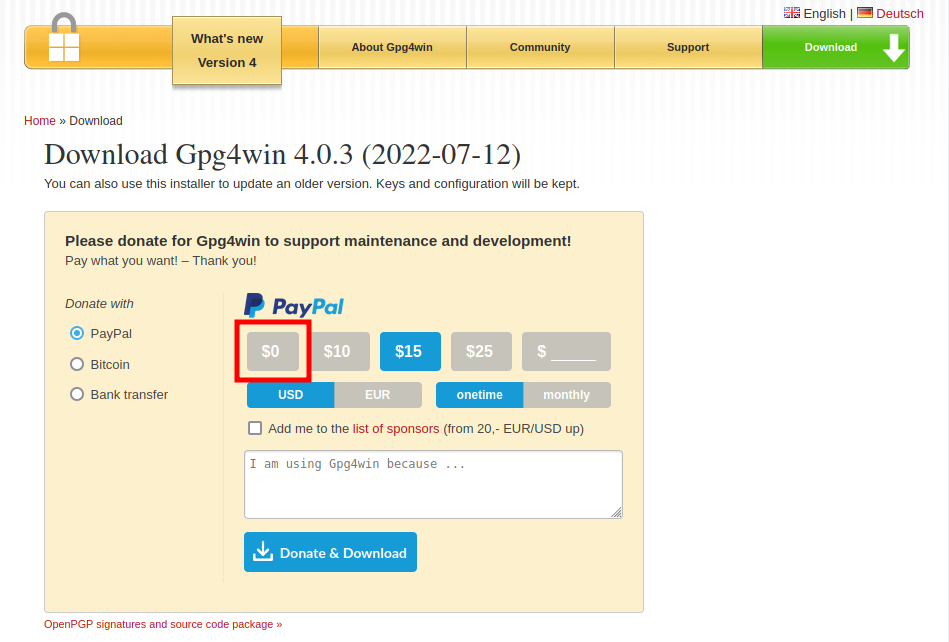
- Click on the button $0
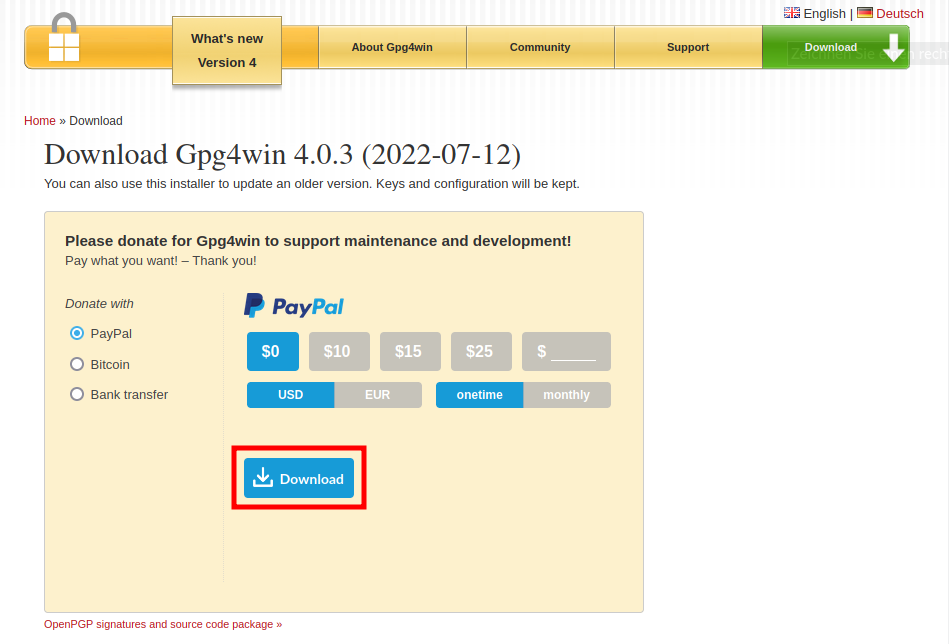
- Click on the button Download to start the download.
2. Check the integrity
An important step before installing Gpg4win is to check the integrity of the installer file. With this step you make sure that you downloaded the official file and not a faked one from a hacker. Here we show you the simplest way to do the check but there are more methods you can use.
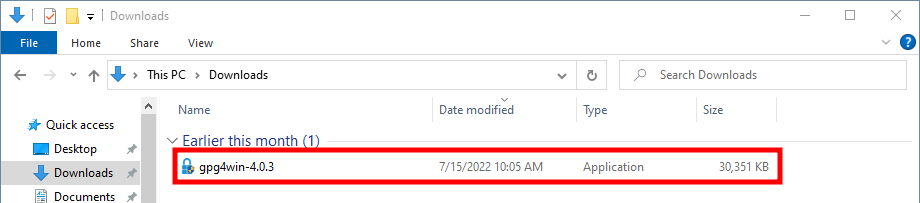
- Open the file gpg4win-4.0.3 (or gpg4win-4.0.3.exe) by double-clicking on it.
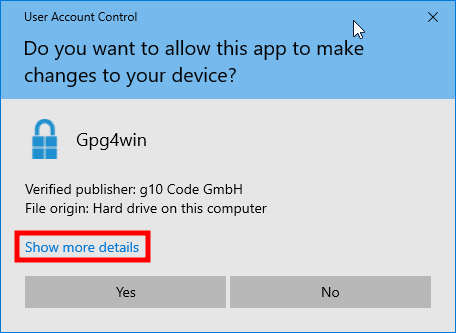
- Click on Show more details
- Click on Show information about the publisher's certificate
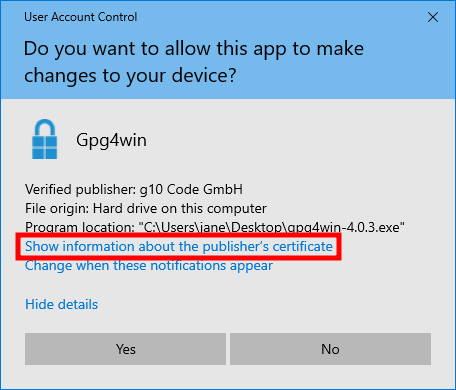
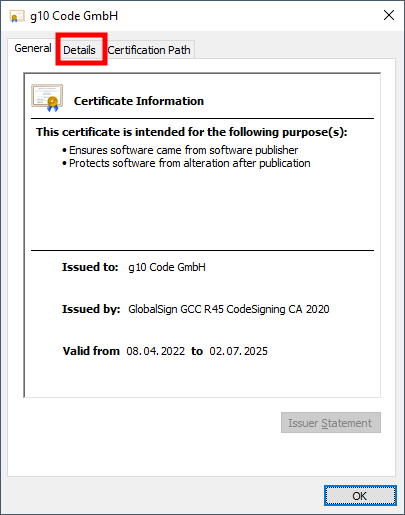
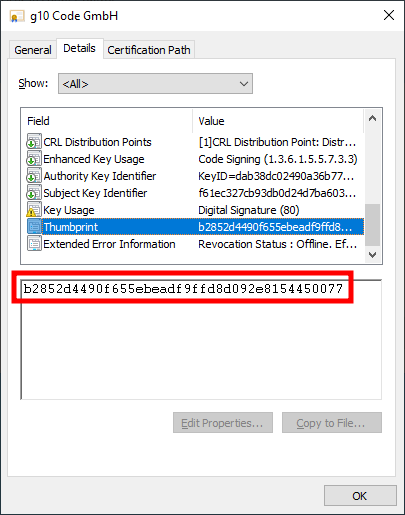
- Click on the tab Details.
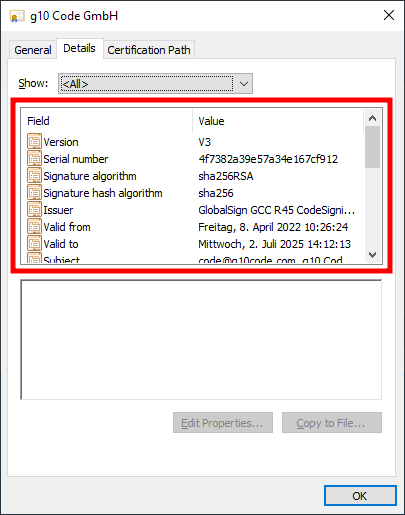
- Scroll down in the list until you see the entry Thumbprint on the left.
- Click on the entry Thumbprint.
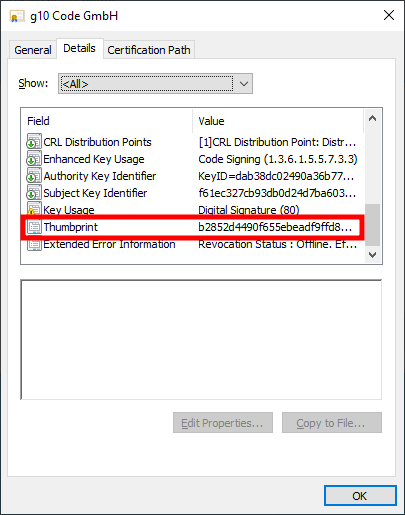
- Now compare the value in the lower text field...
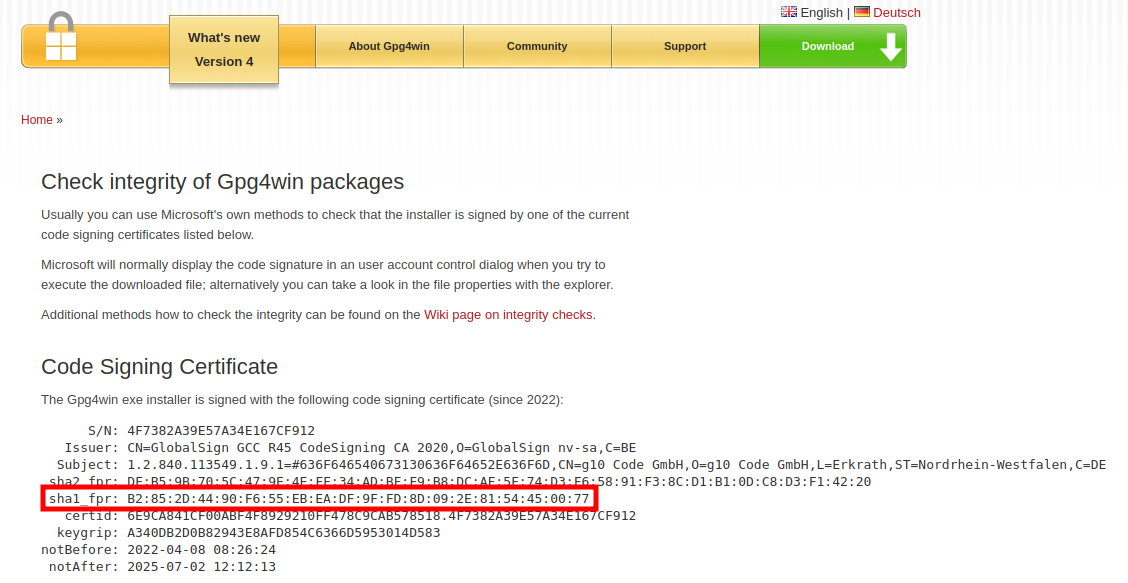
- ... with the value next to sha1_fpr on the page with the official Code Signing Certificate. It does not matter if letters are in an uppercase or lowercase format and you have to ignore the colons. If both values are identical then you can be sure that you downloaded the official installer.
- Close the window with a click on OK.

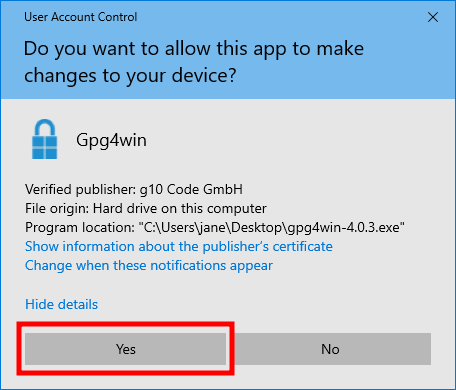
- Click on Yes in the User Account Control window.
- Now continue with the next section of this tutorial.
3. Install Gpg4win
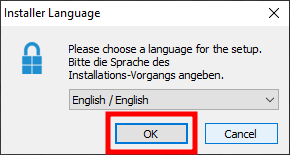
- After some time a small window appears where you select your preferred language and click on OK
- Click on Next >
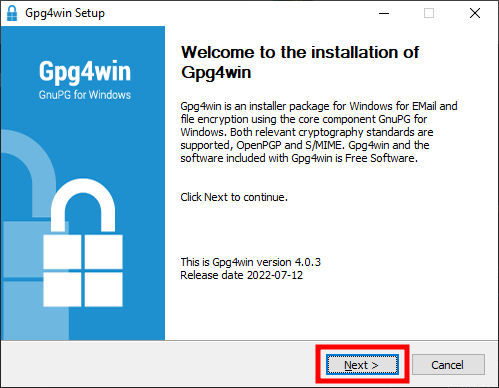
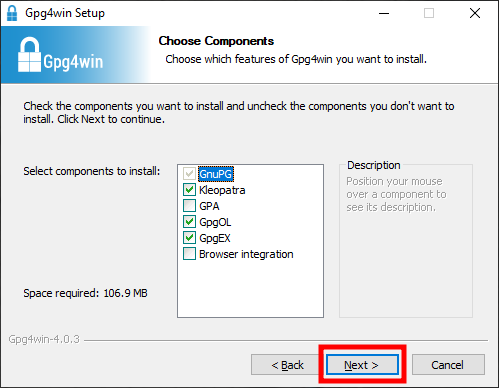
- In the next window you may select components that will be installed. For most users it is not necessary to change this selection so just click on Next >.
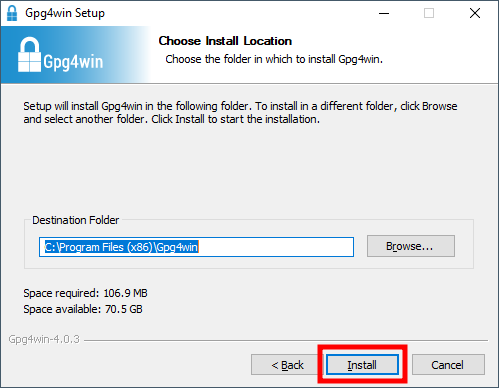
- Now you can select where Windows will install Gpg4win. Again, for most users it is okay to let this setting as it is. Click on Next >.
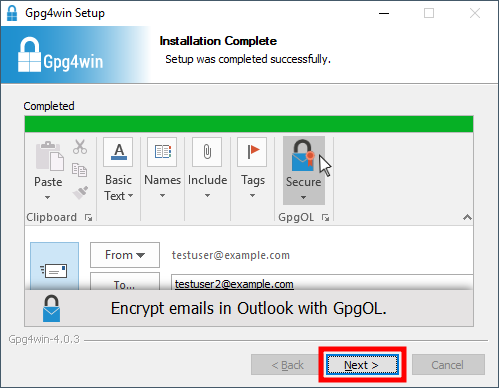
- In the next window wait for the progress bar until it shows that the installation is complete. Click on Next >.
- Click on Finish to close the installation window.
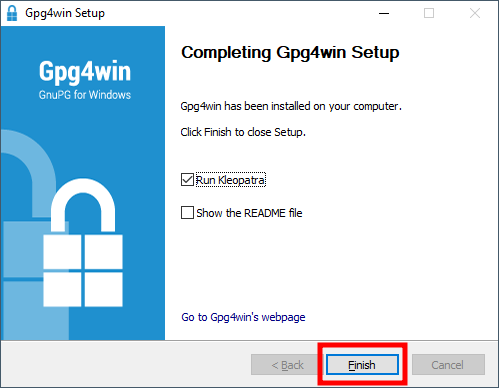
Now you are ready to use Gpg4win
If you followed the tutorial without any modification you should now be able to see a shortcut for Kleopatra on your Desktop. Kleopatra is the tool you can use to manage keys for encryption to encrypt and decrypt files and to do other stuff.